
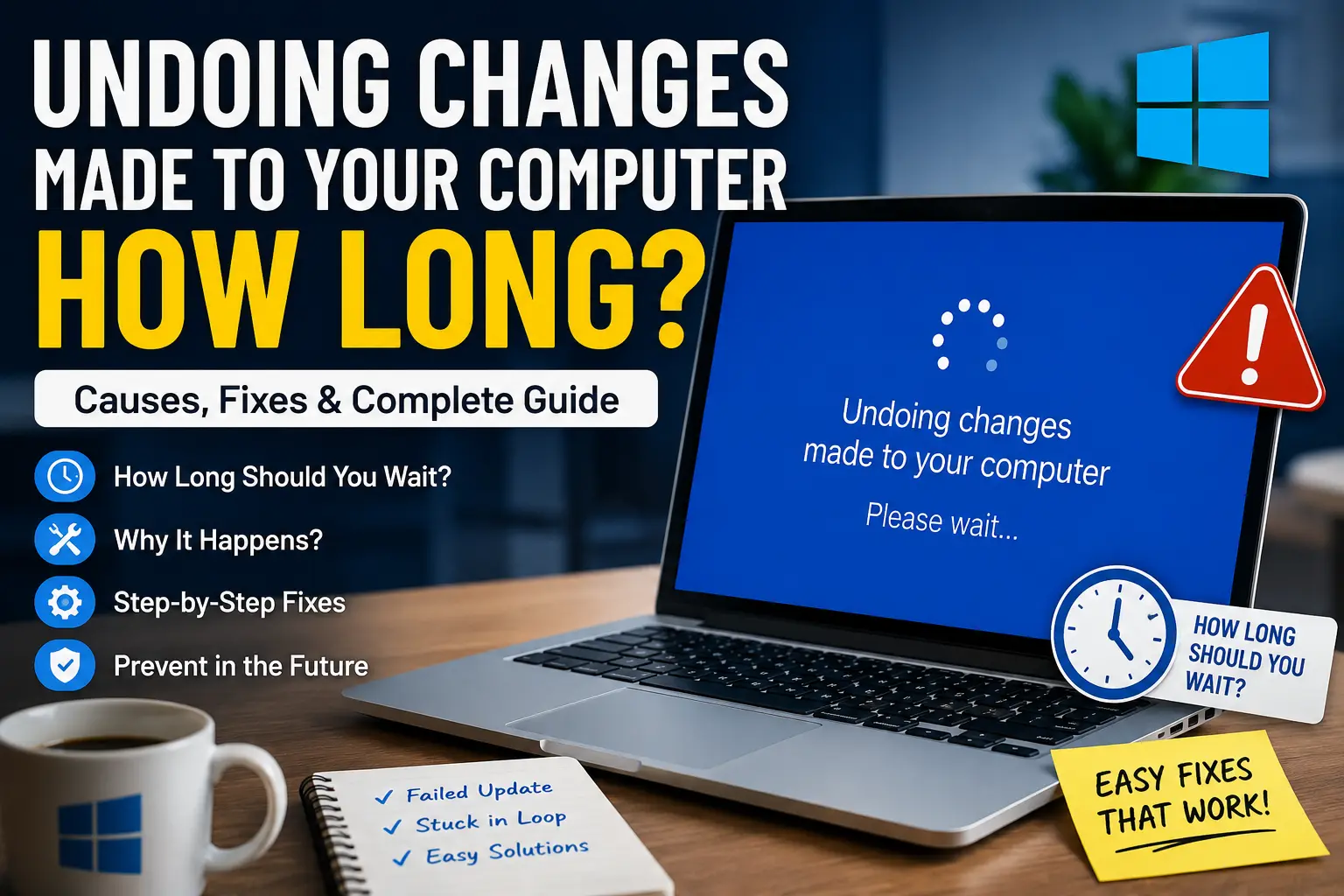
Undoing changes made to your computer how long? Easy Windows 10/11 Fix Guide
If your PC suddenly shows the message “undoing changes made to your computer how long”, you are not alone. Many Windows 10 and Windows 11 users face this issue after a failed update. The screen can stay stuck for minutes or even hours, leaving users worried that their computer is broken.
The good news is that this problem is usually fixable. In most cases, Windows is simply trying to roll back a failed update and restore your system to a working state. In this guide, you will learn how long the process normally takes, why it happens, and the best ways to fix the issue quickly.
What Does “Undoing Changes Made to Your Computer” Mean?
This message appears when a Windows update fails to install correctly. Instead of completing the update, Windows automatically removes the failed changes and returns your system to its previous state.
Think of it as a safety feature. Windows detects a problem during the update and tries to prevent system damage by reversing the installation.
This usually happens because of:
- Corrupted update files
- Power interruption during updates
- Driver conflicts
- Low storage space
- Damaged system files
- Antivirus interference
The process is normal in many situations. However, problems start when the rollback gets stuck for too long.
Undoing Changes Made to Your Computer How Long Should You Wait?
One of the biggest questions users ask is:
“Undoing changes made to your computer how long does it take?”
In most cases, the process takes:
| Situation | Average Time |
|---|---|
| Small update rollback | 10–20 minutes |
| Large Windows update | 30–60 minutes |
| Slow HDD computer | Up to 2 hours |
If your PC is still stuck after 2–3 hours with no progress, the system may be trapped in a rollback loop.
At that point, you should start troubleshooting instead of waiting longer.
Why Does This Error Happen?
Several things can trigger this Windows update issue.
Corrupted Update Files
Sometimes Windows downloads incomplete or damaged update files. The installation fails, and Windows starts undoing the changes.
Sudden Power Loss
If your laptop battery dies or your PC shuts down during an update, the installation can break halfway through.
Low Storage Space
Windows updates need free disk space to unpack files and create temporary backups. If your drive is full, the update may fail.
Driver Problems
Old graphics drivers or incompatible hardware can stop Windows updates from installing correctly.
Antivirus Conflicts
Security software sometimes blocks update files or system changes during installation.
Difference Between “Working on Updates” and “Undoing Changes”
Many users confuse these two Windows messages.
Working on Updates
This means Windows is actively installing updates.
Undoing Changes
This means the installation failed, and Windows is reversing the changes.
If you see “undoing changes made to your computer how long,” the update has already failed.
Can You Turn Off Your PC During Undoing Changes?
No. You should avoid turning off your computer while Windows is undoing updates.
Force shutdowns can:
- corrupt system files
- damage Windows installation
- create boot loops
- cause data loss
Only force restart your PC if the process has frozen for several hours with no activity.
How to Fix Undoing Changes Made to Your Computer
Now let’s fix the issue step by step.
Fix 1: Wait Patiently
Before trying advanced solutions, give Windows enough time to complete the rollback.
If:
- the loading circle still moves
- the hard drive light blinks
- the screen changes occasionally
then the process is still working.
Wait at least 1–2 hours before taking action.
Fix 2: Force Restart Your Computer
If the screen stays frozen for hours, restart the PC manually.
Steps
- Hold the power button for 10 seconds
- Turn the computer back on
- Check if Windows boots normally
Sometimes a simple reboot breaks the rollback loop.
Fix 3: Enter Safe Mode
Safe Mode loads Windows with minimal drivers and services.
This helps bypass problematic updates.
How to Enter Safe Mode
- Turn the PC on and off three times during boot
- Windows will open Automatic Repair
- Click Advanced Options
- Select Troubleshoot
- Click Startup Settings
- Press F4 for Safe Mode
Once inside Safe Mode, you can uninstall recent updates.
Fix 4: Remove the Failed Windows Update
A broken update often causes the problem.
Removing it may solve the issue immediately.
Steps
- Open Control Panel
- Go to Programs and Features
- Click View Installed Updates
- Find the latest update
- Uninstall it
- Restart the computer
This is one of the most effective fixes for the undoing changes made to your computer how long issue.
Fix 5: Run Startup Repair
Windows includes a built-in repair tool.
It automatically fixes startup-related problems.
Steps
- Enter Advanced Startup
- Click Troubleshoot
- Select Advanced Options
- Open Startup Repair
- Let Windows scan and repair errors
This tool can repair damaged boot files after failed updates.
Fix 6: Run SFC and DISM Commands
Corrupted system files can prevent updates from completing.
Windows provides two powerful repair tools:
- SFC
- DISM
Run SFC Scan
Open Command Prompt as administrator and type:
sfc /scannow
Wait for the scan to finish.
Run DISM Commands
After SFC, run these commands one by one:
DISM /Online /Cleanup-Image /CheckHealth
DISM /Online /Cleanup-Image /ScanHealth
DISM /Online /Cleanup-Image /RestoreHealth
These commands repair damaged Windows images and update components.
Fix 7: Rename the SoftwareDistribution Folder
Windows stores update files inside the SoftwareDistribution folder.
If the files become corrupted, updates may fail repeatedly.
Steps
Open Command Prompt as administrator and type:
net stop wuauserv
net stop bits
Then rename the folder:
ren C:\Windows\SoftwareDistribution SoftwareDistribution.old
Restart your PC afterward.
Windows will automatically create a fresh update folder.
Fix 8: Use System Restore
If the problem started recently, System Restore can return your PC to an earlier working state.
Steps
- Open Advanced Options
- Select System Restore
- Choose an older restore point
- Start the restoration process
This does not delete personal files.
Fix 9: Reset Windows
If nothing works, resetting Windows may solve the issue.
Keep My Files Option
This option:
- reinstalls Windows
- removes apps
- keeps personal files
Steps
- Open Settings
- Go to Recovery
- Click Reset This PC
- Choose Keep My Files
Use this only as a last resort.
Can Low Storage Cause Undoing Changes Errors?
Yes. Low disk space is one of the most common causes.
Windows updates require free storage for:
- temporary files
- backups
- installation packages
Try keeping at least:
- 20 GB free on Windows 10
- 30 GB free on Windows 11
Use Disk Cleanup regularly to remove junk files.
How to Prevent This Problem in the Future
Prevention is always better than repair.
Here are the best ways to avoid update rollback issues.
Keep Drivers Updated
Old drivers can conflict with new Windows updates.
Update:
- graphics drivers
- chipset drivers
- network drivers
Avoid Interrupting Updates
Never:
- force shutdown
- unplug the PC
- remove battery power
during updates.
Create Restore Points
Restore points help you recover quickly after failed updates.
Create them before:
- major Windows updates
- driver installations
- system changes
Disable Antivirus Temporarily
Some antivirus programs interfere with updates.
Temporarily disable them during large Windows installations.
FAQs
Why is my PC stuck in a boot loop?
Failed Windows updates, corrupted system files, or damaged drivers can trap the system in a restart loop.
Is undoing changes made to your computer normal?
Yes. Windows uses this process to reverse failed updates safely.
Can corrupted updates damage files?
Usually no. Windows tries to protect personal files during rollback.
However, force shutdowns may increase risk.
How do I know if the rollback is frozen?
If the screen does not change for 2–3 hours and there is no disk activity, the system may be stuck.
Final Thoughts
Seeing the message “undoing changes made to your computer how long” can feel stressful, especially when your PC refuses to boot normally. Fortunately, this issue is usually caused by failed Windows updates and can often be fixed with Safe Mode, Startup Repair, SFC scans, or removing broken updates.
In many situations, patience is enough. But if your computer stays stuck for several hours, use the troubleshooting methods in this guide to get Windows working again.
Keeping your drivers updated, maintaining free storage space, and avoiding interrupted updates can also help prevent this frustrating problem in the future.